Get started
Gage is installed as a Python package.
pip install gage-cli
To simplify the use of Python virtual environments, we use uv in the
steps below. Feel free to use the method most familiar to you.
Create a project
Create a new project directory and change to it.
mkdir gage-start
cd gage-start
Create a virtual environment.
uv venv
If you prefer to not use
uv, you can create a virtual environment withpython -m venv .venv— see Creation of virtual environments for details.
Activate the environment using the instructions provided by uv. On
Bash compatible shells run source
.venv/bin/activate. Other shells may use a different activation
command.
source
.venv/bin/activate
Install Gage
Install Gage CLI.
uv pip install gage-cli
Run gage status to confirm Gage is installed.
gage status
╭──────────────────────┬────────────╮
│ gage version         │ 0.2.1      │
│ gage_inspect version │ 0.2.0      │
│ inspect_ai version   │ 0.3.153    │
│ Python version       │ 3.12.3     │
│ .env                 │            │
│ Log dir              │ logs       │
│ Config               │ gage.toml  │
│ Active profile       │            │
╰──────────────────────┴────────────╯
If you see errors, please ask for help on Discord.
Create a task
In the project directory, create a file named funny.py containing this
code:
from inspect_ai import Task, task
from inspect_ai.solver import generate, prompt_template

from gage_inspect.dataset import dataset
from gage_inspect.scorer import llm_judge

@task
def funny(judge: str | None = None):
    """Quick start example."""
    return Task(
        solver=[
            prompt_template(
                "Say something funny about {prompt} "
                "in 5 words or less"
            ),
            generate(),
        ],
        scorer=llm_judge(judge),
    )

@dataset
def samples():
    """Sample topics for the funny task."""
    return ["birds", "cows", "cats", "corn", "barns"]
Save the file.
Use gage task list show the available tasks.
gage task list
╭───────┬──────────────────────┬──────────╮
│ Task  │ Description          │ Source   │
├───────┼──────────────────────┼──────────┤
│ funny │ Quick start example. │ funny.py │
╰───────┴──────────────────────┴──────────╯
Model support
Before you run the task, install the Python package needed for the model you want to use.
| Provider | Python package |
|---|---|
| OpenAI | openai |
| Anthropic | anthropic |
google-genai |
|
| AWS Bedrock | aioboto3 |
See Models for more options.
For example, to use OpenAI, install the openai package.
uv pip install openai
You also need to set the API token/keys required for the models you want to use.
| Provider | Environment variable |
|---|---|
| OpenAI | OPENAI_API_KEY |
| Anthropic | ANTHROPIC_API_KEY |
GOOGLE_API_KEY |
|
| AWS Bedrock | AWS_ACCESS_KEY_ID, AWS_SECRET_ACCESS_KEY |
See Models for more options.
For example, to use OpenAI, set the OPENAI_API_KEY environment
variable for your shell. In Bash:
export OPENAI_API_KEY='*****'
Run the task
Run the task with the --score option.
gage run funny --score
Gage asks for Input. Enter a topic you’d like the model to say something funny about.
The Input field accepts multiple lines. Pressing
Enteradds a new line without submitting the value. To submit a value, first pressEscand then pressEnter.
When asked to enter Target press Enter without entering a value.
The task scorer does not use a target.
For Model, enter the model name you want to use. Here are some popular models.
openai/gpt-4.1anthropic/claude-sonnet-4-0google/gemini-2.5-pro
When asked to Continue, press Enter. Gage runs the task by
submitting your input to the model.
If you get an error, check the steps above. If the task still does not run, open an issue and we’ll help.
Here’s the output generated for a sample run:
┌  Run task
│
◇  Task:
│  funny
│
├  Description:
│  Quick start example.
│
◇  Input:
│  snow
│
◇  Target:
│  None
│
◇  Model:
│  openai/gpt-4.1
│
◇  Additional options:
│  Output will be scored
│
●  Output:
│
│  Snowman’s nightmare: sunny weather.
│
├  Score:
│
│  Correct
│
│  The model successfully made a humorous comment about snow in exactly
│  five words: "Snowman's nightmare: sunny weather." It’s concise, fits
│  your length requirement, and relates to snow in a funny and creative
│  way.
│
└  Done
Note the output and the score.
The model should say something funny about a topic in fives words or less.
- Is the output funny?
- Is the output five words or less?
In the example above, the judge marks the response as Correct and offers an explanation. One could argue that the output is not funny, nor sensible. The judge also miscounted.
It’s temping to see “Correct” and move on. But we can see with just a single sample that both our task needs work.
Logs
When you run a task, Inspect creates a log with run information. Logs tell you what happened.
- Task input
- Prompt details
- Model output
- Scoring details
There are several ways to view Inspect logs. In this step, you use Gage Review, a terminal based app that streamlines the log review process.
View the Inspect logs for the project using
gage review.
gage review
Each time you run a task with gage run, you create a new log file with
a single sample.
Press Enter to open the most recent log. This contains the details of
you latest run.
In Review, you can see the Input, Output, and Score. This is the same output you saw in your terminal.
Use the arrow keys to navigate to Transcript and press Enter. This
shows the two messages that were involved in the task run: user and
assistant. Highlight either message and press Enter to view its
content.
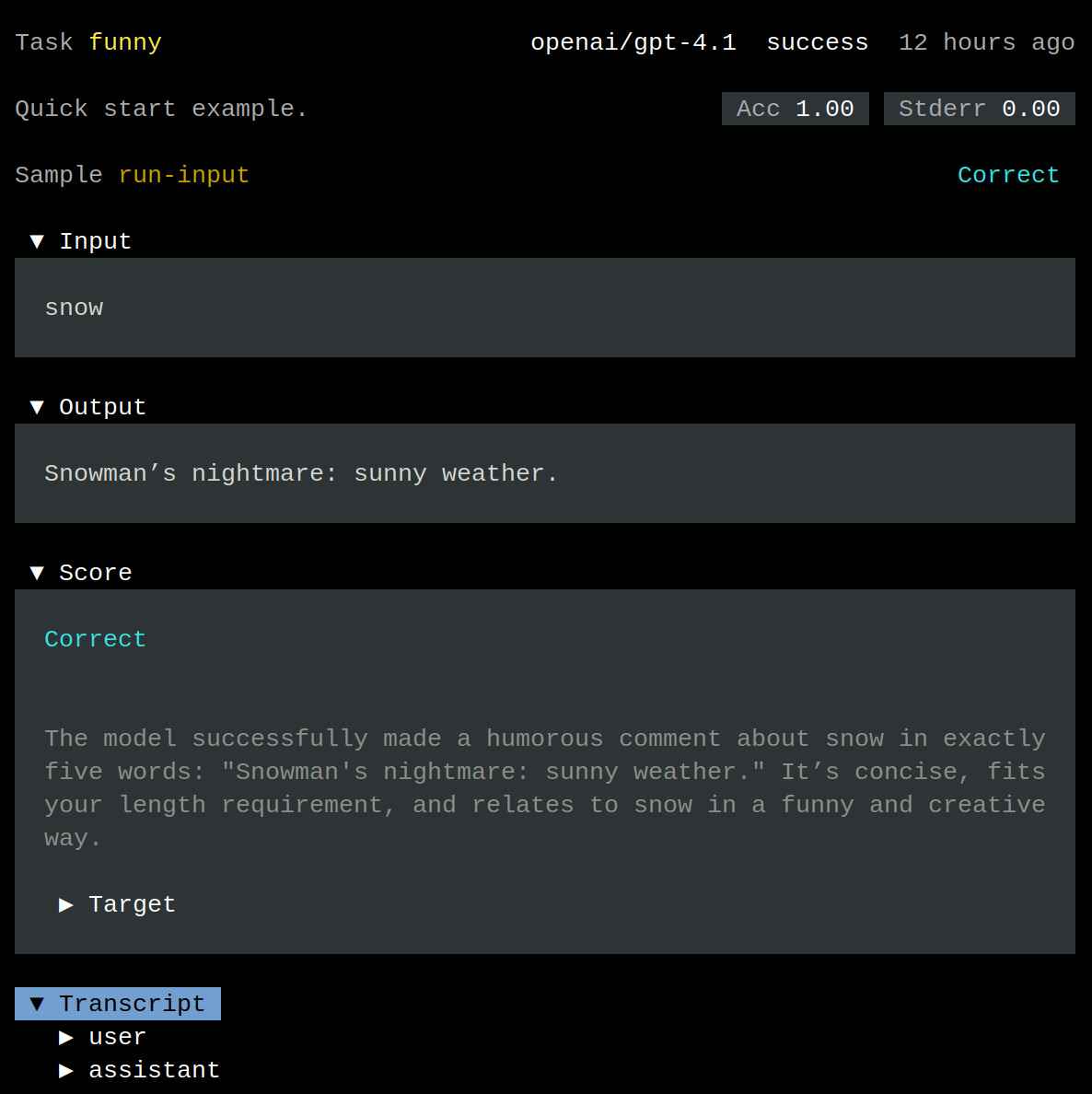
You can use the mouse to navigate in Gage Review.
Keep these rules in mind when using Gage Review.
- Press
qto go back one level and eventually exit the application - Press
?to get help for the current screen
Gage Review has two log views: Simplified and Advanced. The Simplified view is designed to quickly review a large number of samples. The Advanced view is used for deeper analysis.
Press 2 to use the Advanced view. You can press 1 to use the
Simplified view again.
The Advanced view shows a tree of log details. Take a moment to explore what’s available. There’s a lot! This is the value of using Inspect logs, which capture everything you need to understand how a task performed, including its scores.
We don’t get into details about Advanced view in this guide. Just skim the information to get an idea of what’s there, even if you don’t understand everything you see.
Press q twice to exit Gage Review.
Evaluate the task
funny.py contains a dataset of sample inputs that can be used to
evaluate the task.
Use gage dataset list to list available datasets.
gage dataset list
╭─────────┬───────────────────────────────────┬──────────╮
│ Dataset │ Description                       │ Source   │
├─────────┼───────────────────────────────────┼──────────┤
│ samples │ Sample topics for the funny task. │ funny.py │
╰─────────┴───────────────────────────────────┴──────────╯
Run an eval using gage eval.
gage eval funny
Enter the Model you want to evaluate and when prompted to
Continue press Enter.
Gage launches Inspect to evaluate the task using the sample topics.
╭────────────────────────────────────────────────────────────────────────╮
│funny (5 samples): openai/gpt-4.1                                       │
╰────────────────────────────────────────────────────────────────────────╯
max_tasks: 4, tags: type:eval, dataset: samples

total time:       0:00:03
openai/gpt-4.1    1,092 tokens [I: 729, CW: 0, CR: 0, O: 363, R: 0]

llm_judge
accuracy   0.600
stderr     0.245

Log: logs/2025-12-02T22-51-42+00-00_funny_Fq8rAuzb9NYbPb83xVS4xn.eval
Use Gage Review to look over the results.
gage review
The evaluation run appears as the first item in the list. Press Enter
to start reviewing the samples.
Use the Right and Left arrow keys to navigate through the samples.
Use Down and Up to review the Input, Output, and Score
for a sample.
By reviewing the output of even five cases you can get a sense of what’s working well and what isn’t. Effective AI development centers on ever-deepening your understanding of data — what goes into a model and what comes out.
In the samples we ran we noticed a few issues.
- The humor seems to range from good to cheesy to unfunny/nonsensical — there’s room for improvement
- The judge was unable to detect unfunny responses — everything was hilarious as far as the judge is concerned
- The judge sometimes miscounts words
As an AI app developer, your job is to think creatively about solutions and put your ideas to the test with measured experiments.
Ideas to improve the task:
- Refine the prompt to specify the type of humor we’re looking for (cheesy, clever, puns, surprising, etc.)
- Provide examples of what we’re looking for and what to avoid
- Provide stricter criteria to the judge for scoring
- Implement a word count scorer in Python to eliminate the chance of miscounts
Each time we make a change to the task we can evaluate it and review the results. We can always add more samples, but even with five we have a reasonable basis for measurement, especially at this early stage of development.
Run a task endpoint
To run the funny task as an HTTP endpoint, create a file named
serve.py in the same directory.
from fastapi import FastAPI
from gage_inspect.task import run_task

from funny import funny

app = FastAPI()

@app.get("/funny/{topic}")
def get_funny(topic):
    resp = run_task(funny(), topic)
    return resp.completion
Install support for FastAPI. Use fastapi[standard] to include the
FastAPI CLI.
uv pip install fastapi[standard]
Before running serve.py, set GAGE_MODEL so the task knows which
model to use. Ensure that you have any required API keys set.
export GAGE_MODEL=openai/gpt-4.1
export OPENAI_API_KEY='*****'
Use fastapi to run serve.py.
fastapi run serve.py
In a separate terminal, use curl (or the HTTP client of your choice)
to see something funny.
curl localhost:8000/funny/goose
If you get an error, check the fastapi terminal output. You may have
the wrong model or API key. Stop the server by pressing Ctrl-c, fix
the environment variables, and re-run the fastapi command above.
Recap
In this guide you get to know Gage.
- Create your first task
- Run the task with ad hoc input with
gage run - Review the Inspect logs with
gage review - Evaluate the task for a set of samples wih
gage eval - Run the task as an endpoint using FastAPI
In the next section you cover Gage concepts.